Overview
In this article, we will review how to perform QE Survey and Trip Reports.
Steps to Perform QE Survey or Trip Report
Step 1: Log into Aline and select Quality.
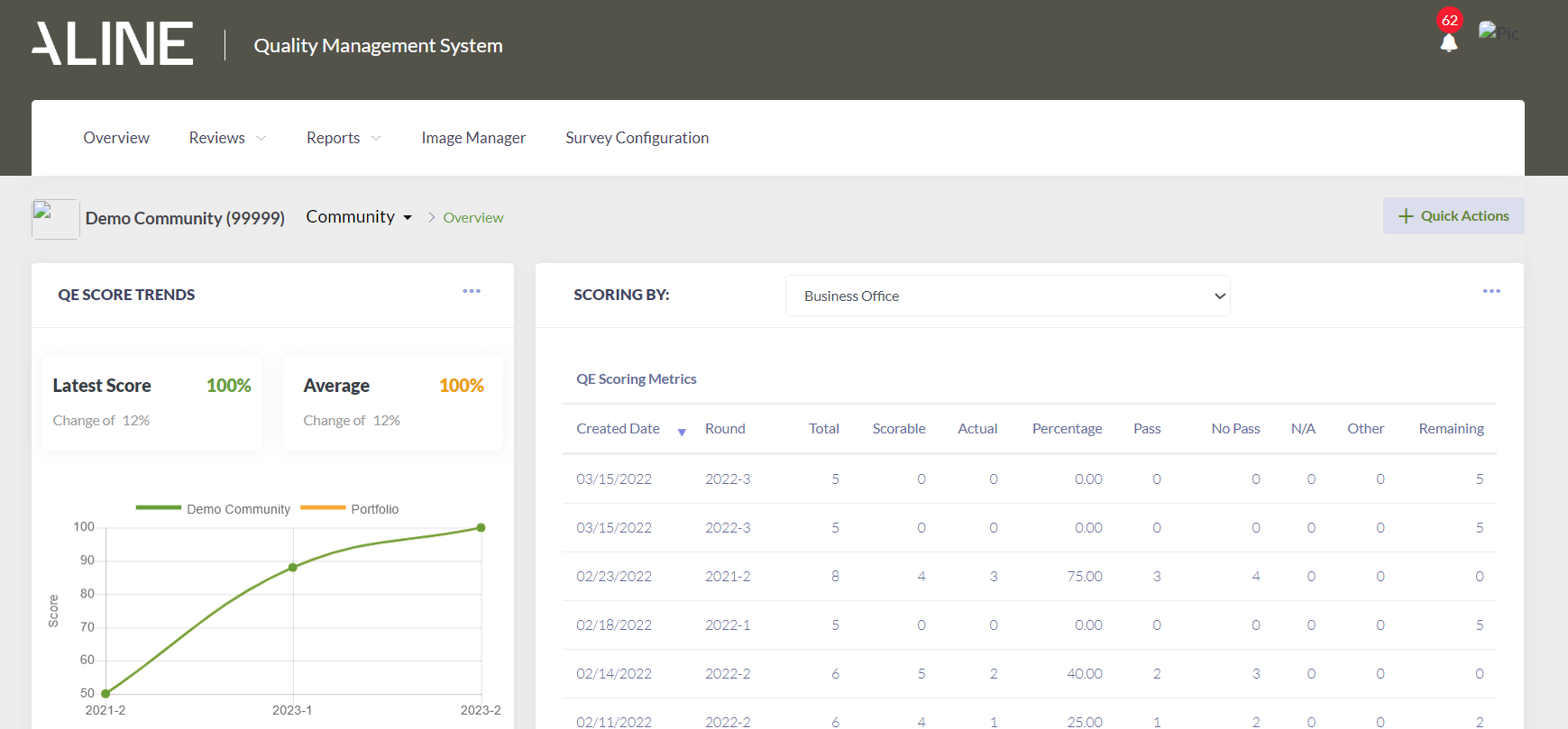
Step 2: Once the dashboard populates, select Review from the header options.
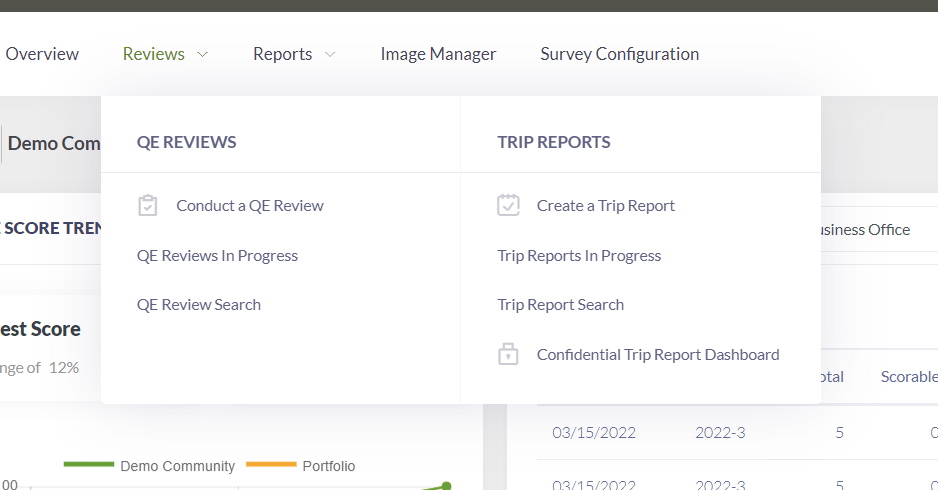
Step 3: Select either Conduct a QE Review or Create a Trip Report. For this example we will conduct a QE Survey
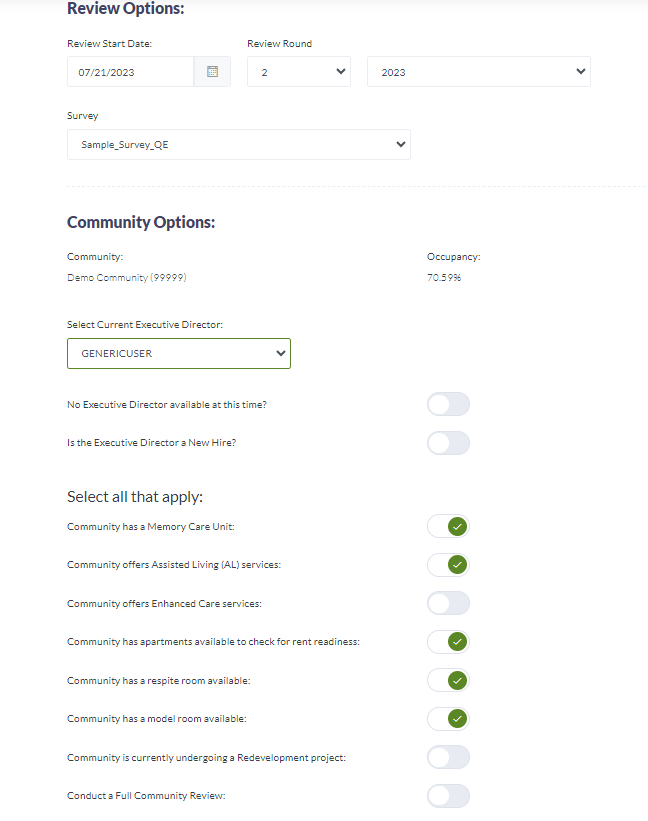
Step 4: Select the date of the review, the round, the year and the survey name.
Note: If the users have permission the community information options will be able to be toggle active or inactive. Your community group may have this unavailable to edit, based on the configurations of your community/group.
Note: If Conduct a Full Community Review is active then ALL questions on the review will be present. Sections can be set up to hide questions groups that don’t apply to a community, for example AL questions. If this option is set to active all will appear and will bypass the section flag.
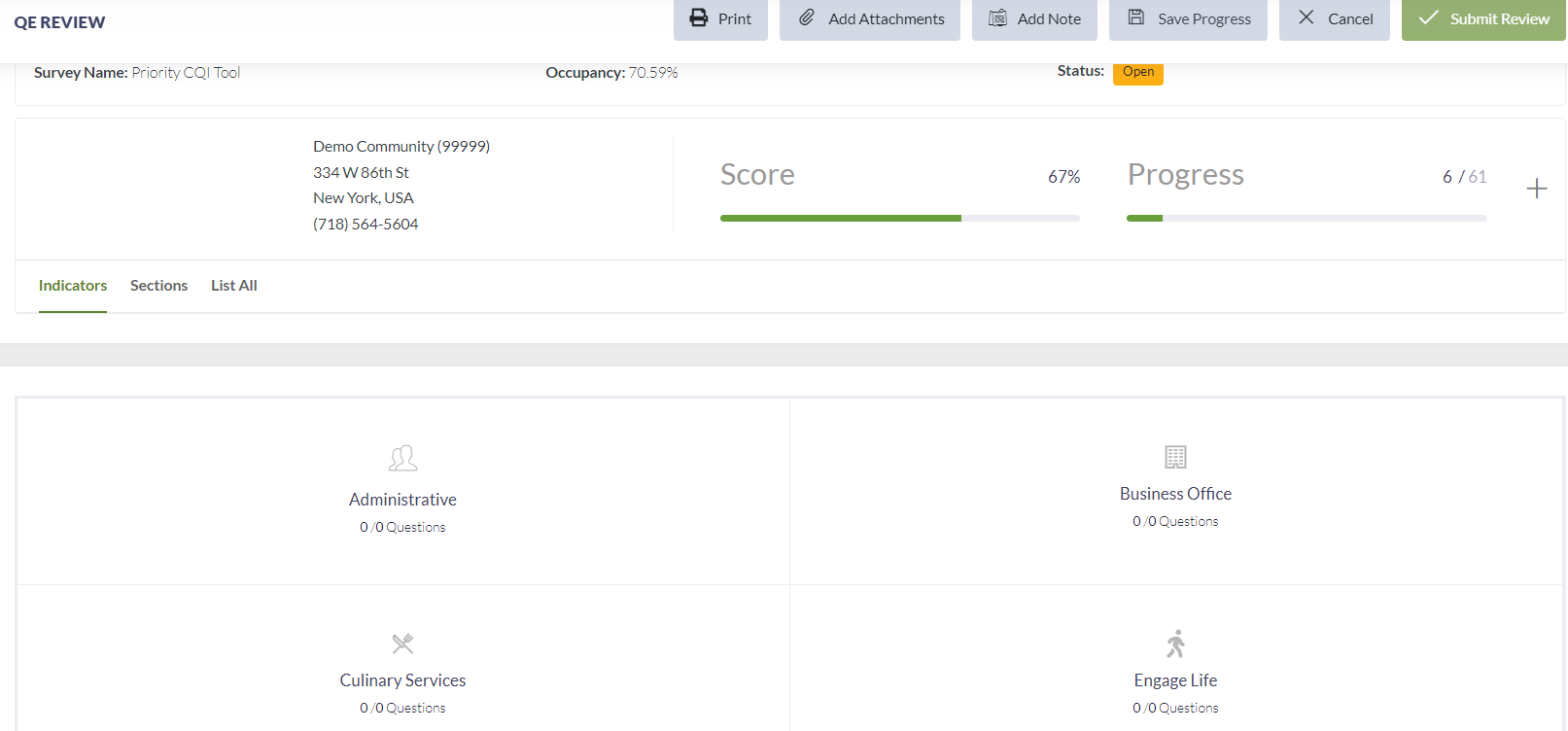
Step 5: Users will be able to click on the section they want to be reviewing or select Section or List All to see the review in the order it was set up in.
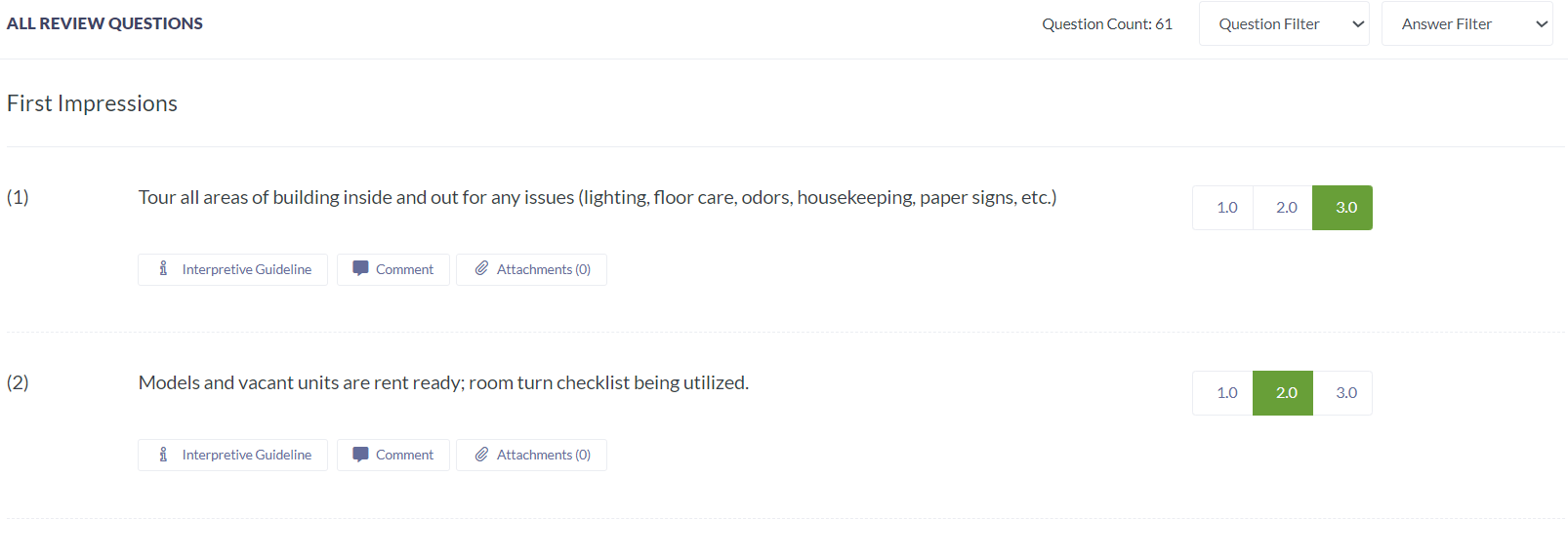
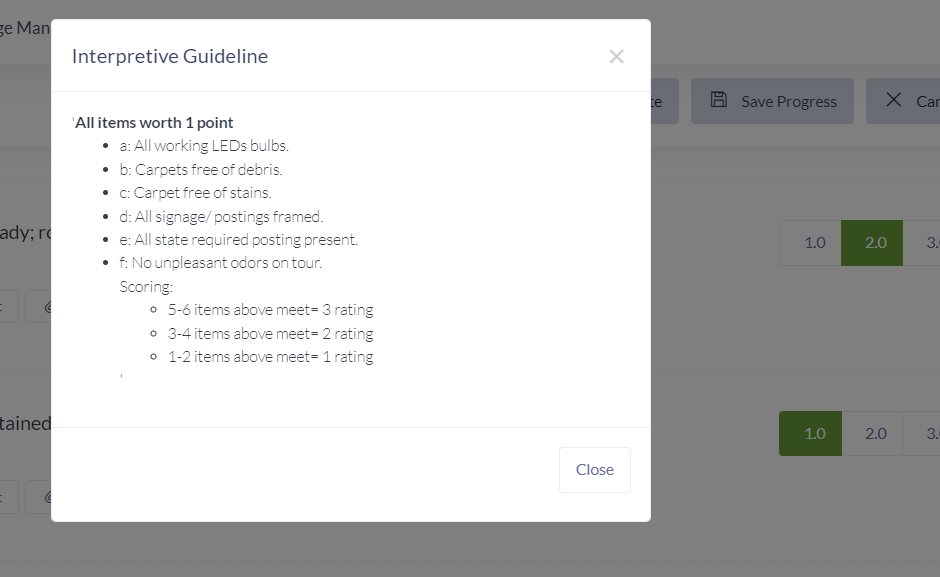
Step 6: Users can now begin to answer the question for the review. There are multiple types of questions you may see Pass/Fail, a numbered system or maybe just a Comment box to fill. For any question a comment can be attached as well as an image. Users can click on those tabs and follow the prompt. The images would be JPG images from the devices picture file. For information about the question select Interpretive Guidelines for the guidelines for each question set up by your corporate team.
Step 7: When all required questions are completed the Submit Review button at the top right will be available to use. Click on it to submit the review. You will be asked if you are sure, select Yes.
Step 8: You will be returned to the Dashboard to view your Plans to Correct, if applicable.
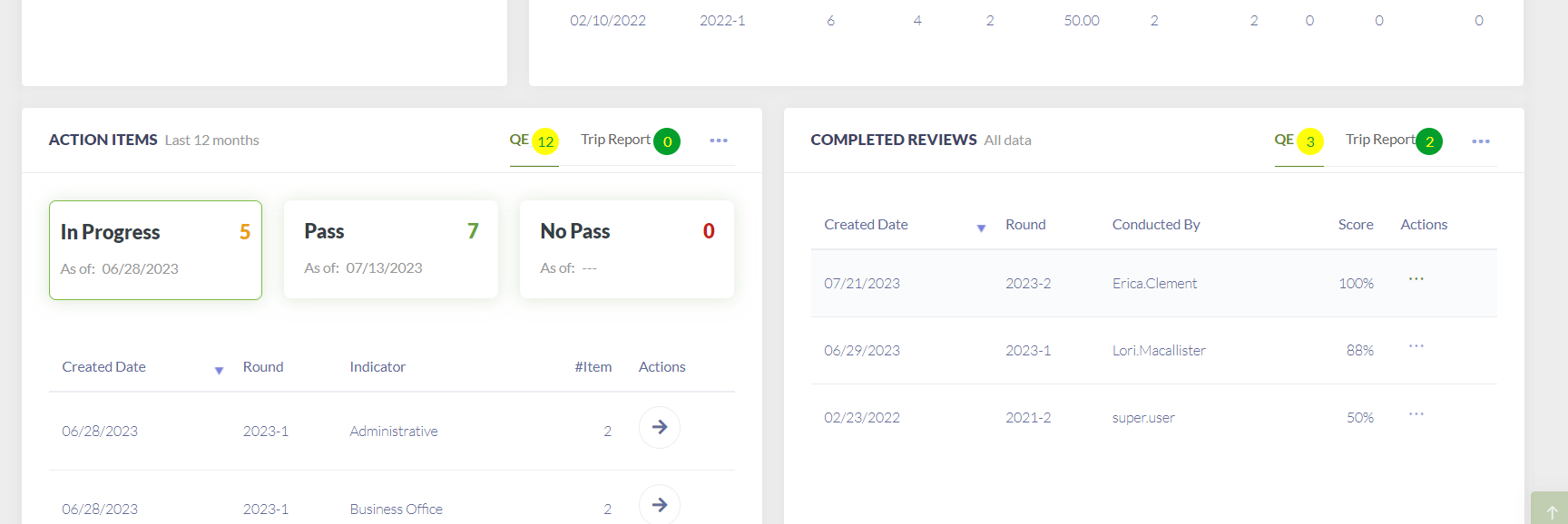
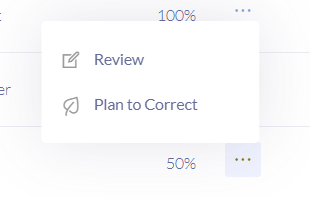
Step 9: Select the Plan to correct.
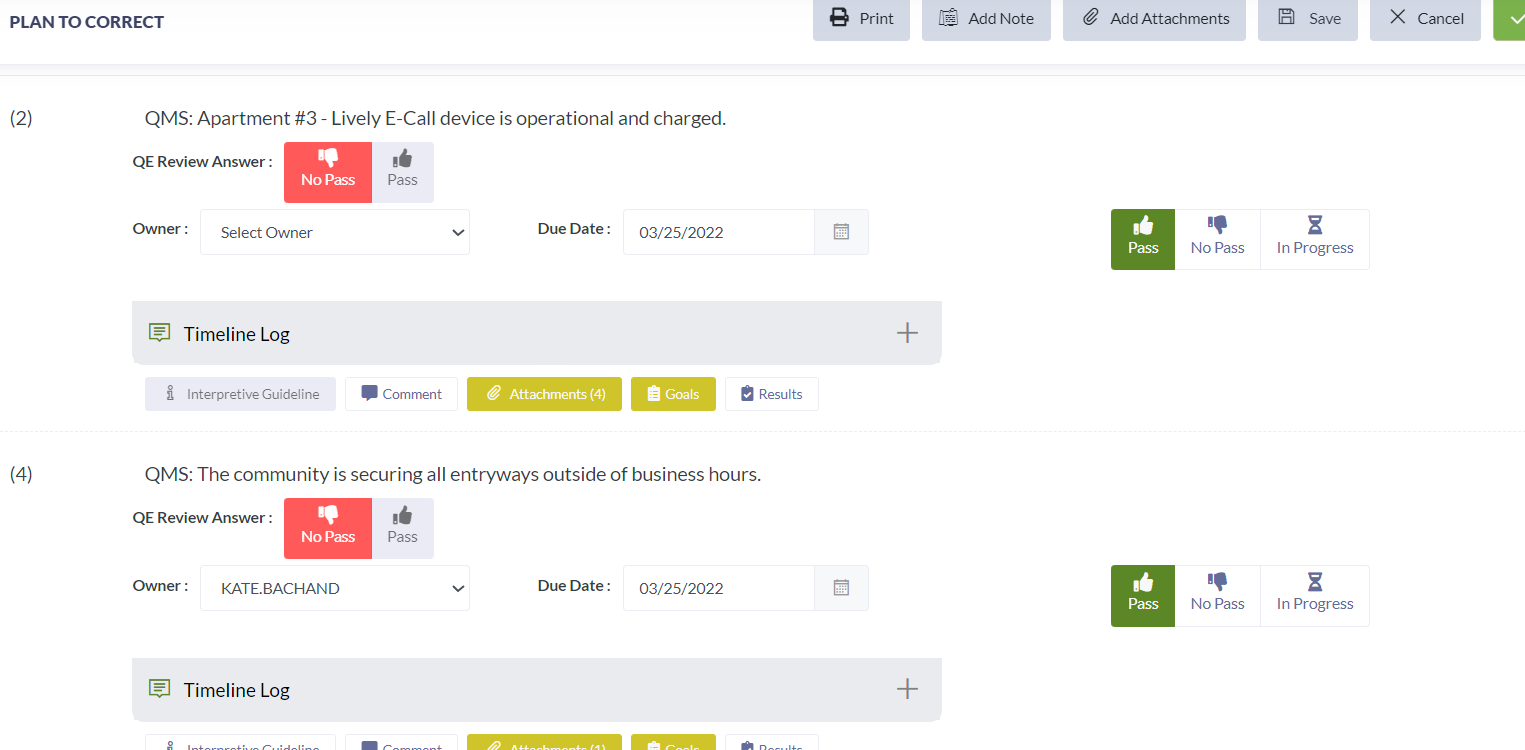
Step 10: The surveyor will be able to select who owns the Plan to Correct for the area. If you would only like the ED to own the items that is up to the group/community-based community policy.
Step 11: When corrections are made the user will be able to come to the Aline Quality, Dashboard and find their plan to correct and Pass/ No Pass/ or place the item In Progress.
Step 12: When all Plan to Correct (PTC) are passed then the survey can be closed. It can be closed without this step; best practice is to ensure all items have passed prior to closing the survey.
Note: QE Surveys are set up behind the scenes either annually or twice annually. If QEs are done twice annually then they are called Round 1 and Round 2. The first two surveys of a year are selected as the primary surveys. If a survey needed to be stopped and a new one begun, a superuser for the organization can change this primary flag.
Note: Trip Reports can be a smaller, targeted surveys throughout the year. For example, a mid-year culinary quality inspection would be a trip report. Groups can use as many trip reports throughout the year as desired.
Was this article helpful?
That’s Great!
Thank you for your feedback
Sorry! We couldn't be helpful
Thank you for your feedback
Feedback sent
We appreciate your effort and will try to fix the article