Overview
In this article, we will review how to publish the survey or trip report.
Publishing
At the completion of all testing the survey or trip report needs to be published. This allows it to be used and shared with communities.
Step 1: While in the survey/trip report on the Survey Configuration page Publish can be found at the top right of the page. Toggle Publish to Active and Save.
Step 2: Allow Prep Report is also an option that allows specific community information to be prepopulated on the survey such as residents, vendors, incidents. They can be attached to specific questions if desired.
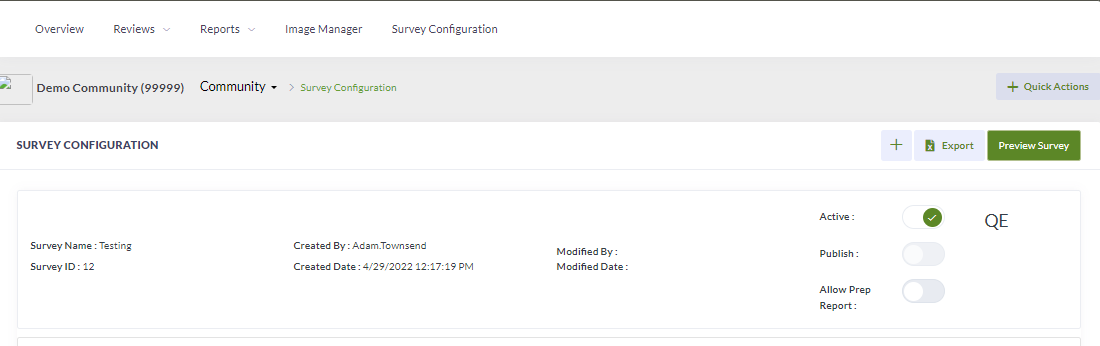
Note: After publishing, survey/trip reports can be shared with communities.
Step 3: From the Survey Configuration page select Community Association
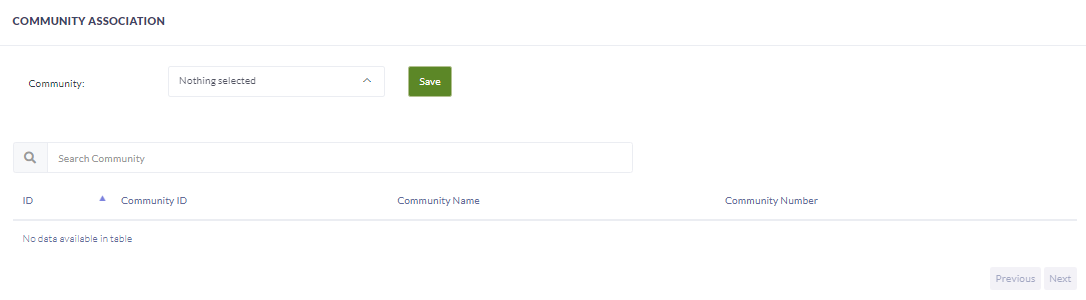
Step 4: Select all the communities from the drop down who will be using the survey or trip report.
Step 5: Select Save
Was this article helpful?
That’s Great!
Thank you for your feedback
Sorry! We couldn't be helpful
Thank you for your feedback
Feedback sent
We appreciate your effort and will try to fix the article