Quality Enhancement
The Quality Enhancement app offers focused insights into performance metrics, correction plans, and quality variances. It enables targeted improvements and streamlined quality management across communities and departments.
QE Summary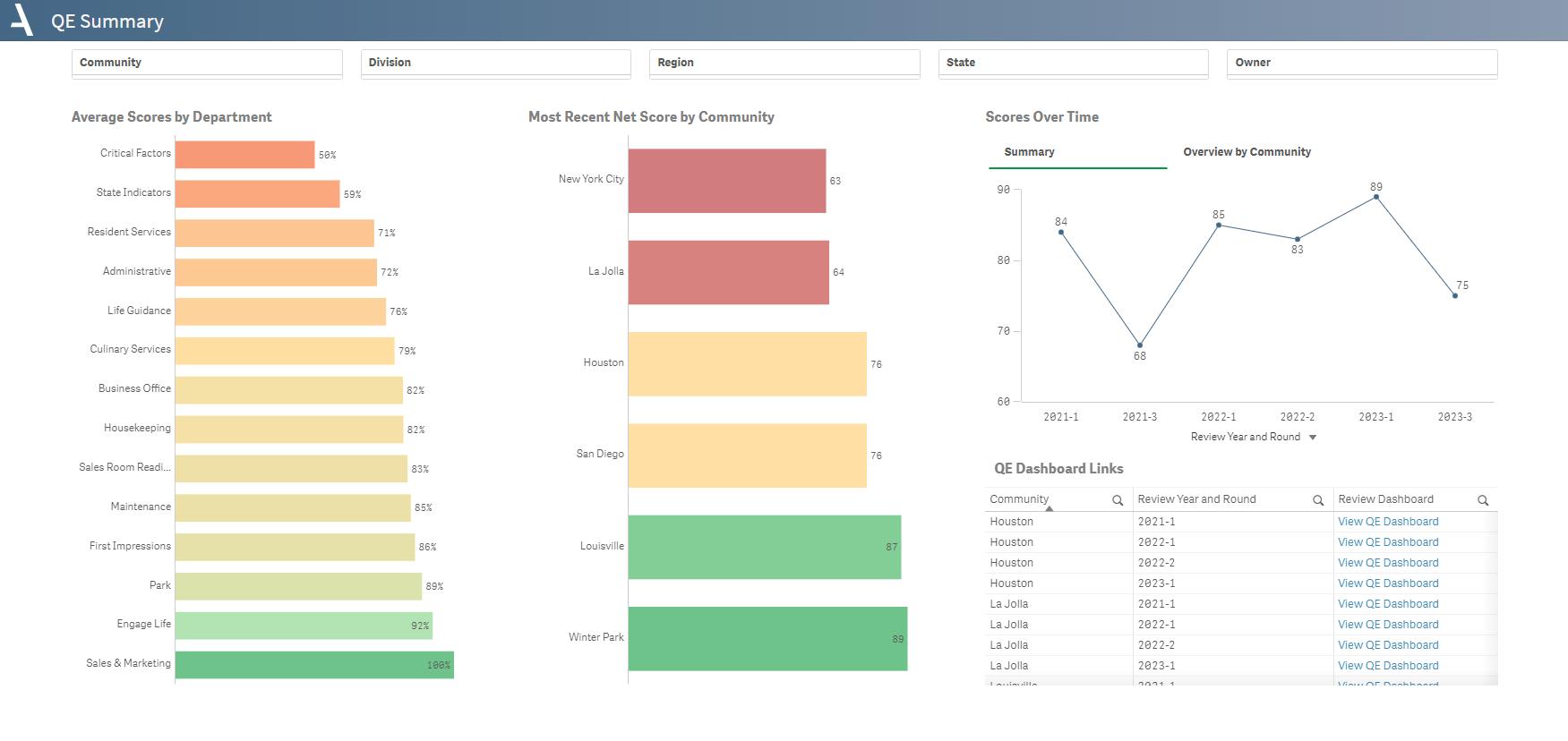
The QE Summary sheet delivers targeted analytics for evaluating Quality Enhancement scores across different departments and communities:
- Quickly see how departments are doing with average score indicators and charts, helping you spot areas that need improvement.
- Get the latest quality scores for different communities, so you can take fast action where needed.
- Understand how scores change over time with line charts and community summaries, useful for planning ahead.
- Find specific Quality Management dashboards with the "QE Dashboard Links" table, making it simpler to dig deeper into the details of each community's review rounds in QMS.
Layout Tips
- Switch between "Scores Over Time" and "Overview by Community" tabs in the top right for varied QE performance views.
- Use "QE Dashboard Links" for quick access to specific community review round metrics.
- Drill down to department level in the "Overview by Community" table for detailed performance evaluation.
Questions to Get Started
How has the average QE score for a specific department changed over different review rounds?
Select the department of interest from the bar chart, and switch the "Scores Over Time" tab to view the trend of average QE scores over time. This will help identify any patterns or irregularities that may require action.
Which community has the most improvement or decline in the most recent QE scores?
Navigate to the "Overview by Community" tab to identify communities that have improved or declined over time. The red and green dots in the Sparkline indicate the lowest and highest scores, helping to gauge the range of performance over time.
PTC Dashboard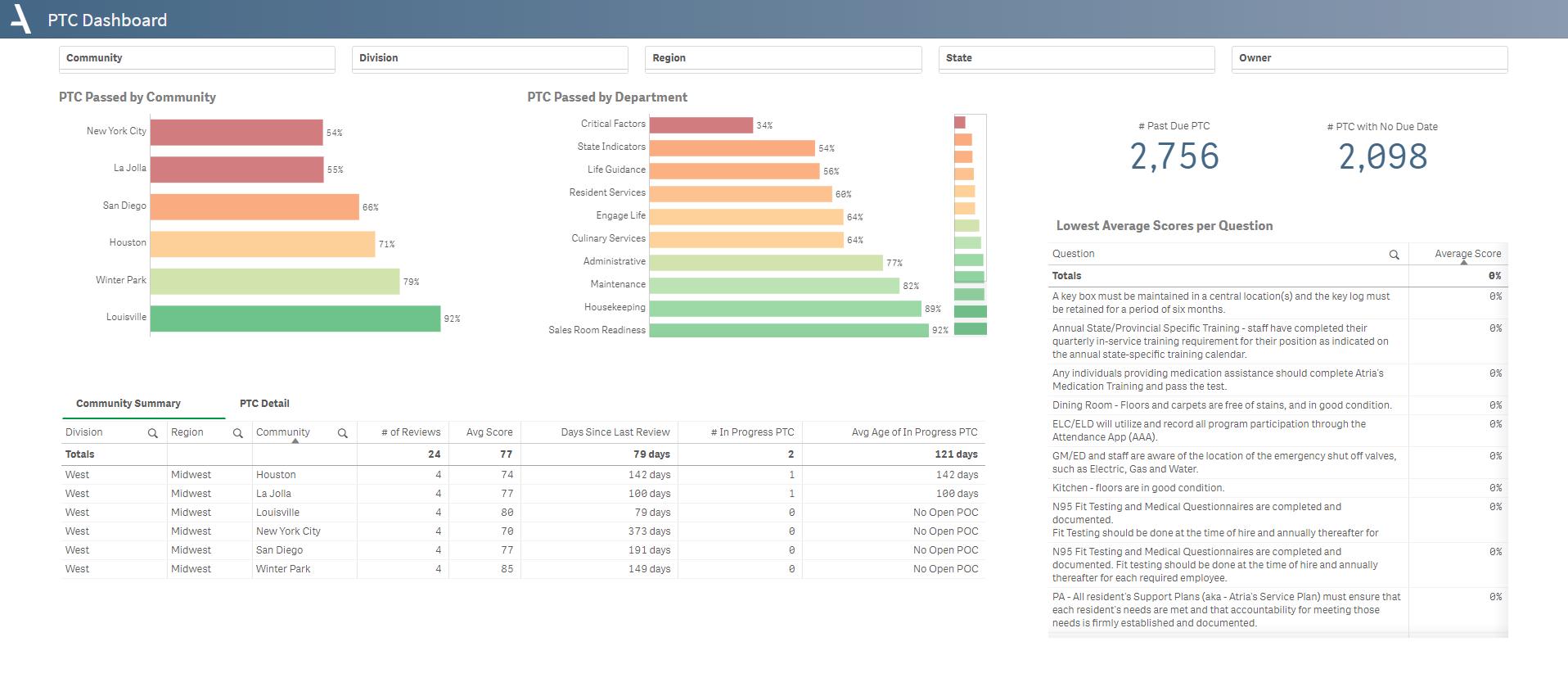
The PTC Dashboard sheet provides immediate insights into the pass percentages of Plans to Correct (PTCs) across communities and departments.
- Quickly identify communities with low PTC pass rates for targeted interventions.
- Examine departmental PTC performance for possible adjustments.
- Use two-view tabs for metrics like average scores and ongoing PTC status.
- Track overdue and undated PTCs for better planning and resource use.
- Spot consistently low-scoring questions for immediate or long-term action.
Layout Tips
- PTC Passed by Department bar chart drills down from department to indicator question.
- Use the tabs to toggle between two different views -- a summary of PTC metrics by community, as well as a detailed breakdown of PTCs.
Questions to Get Started
Which department has the lowest scores? What indicator questions are causing this?
- Select the top-most department in the bar chart and drill down to indicator question within that department. From here, view a leaderboard of question scores, or reference the table with the lowest scores to view a list of questions with 0% scores.
Which communities have the most PTCs in progress and what are the details?
- Go to the Community Summary tab and sort the column for In Progress PTCs from highest to lowest. Select the community with the most 'in-progress' PTCs, then toggle to the PTC Detail tab. Filter the PTC response status to in progress to view detailed information about these specific cases.
Was this article helpful?
That’s Great!
Thank you for your feedback
Sorry! We couldn't be helpful
Thank you for your feedback
Feedback sent
We appreciate your effort and will try to fix the article